In this tutorial, you'll learn how to use Auto Metadata AI to automatically generate Adobe Stock metadata, Shutterstock keywords, and metadata for all major microstock platforms. By the end, you'll be able to process hundreds of stock photos in minutes instead of hours.
Whether you're uploading to Adobe Stock, Shutterstock, Getty Images, iStock, or Pond5, this tool handles all your stock photography metadata needs.
Download and Install
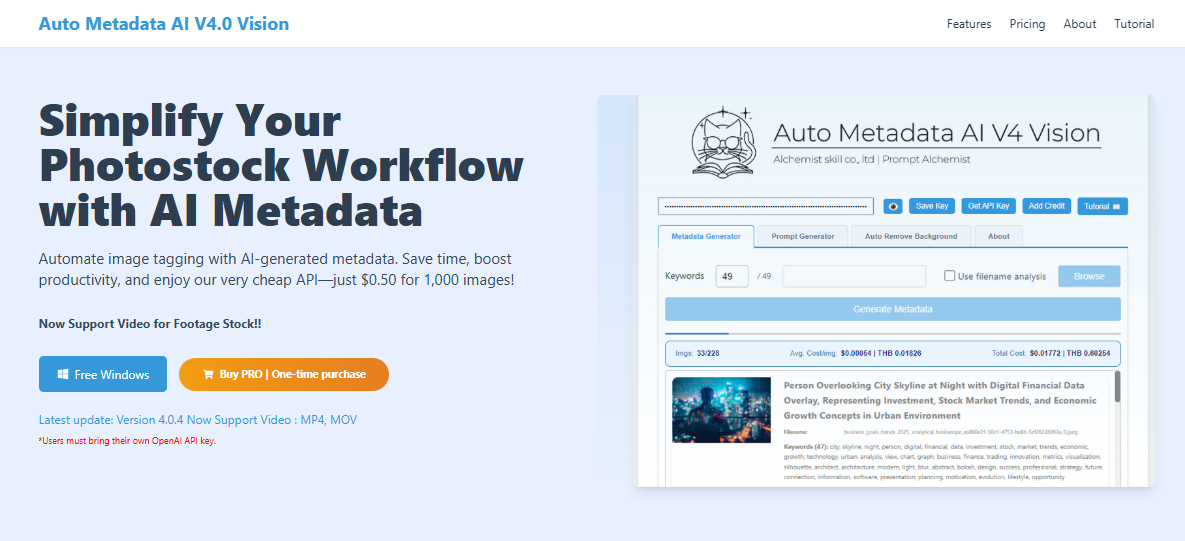
First, download the application from our website.
- Go to autometa.alchemistskill.com
- Click "Free Windows" to download the free version
💡 Tip: Try the free version first to make sure it works for your microstock workflow. You can upgrade to Pro later if needed.
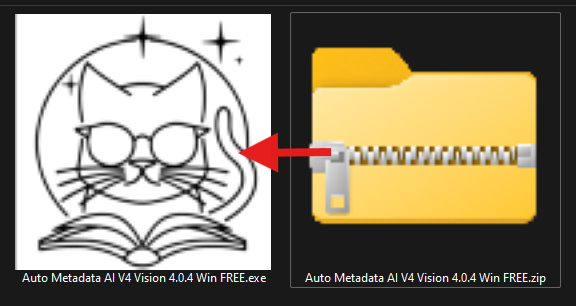
- Extract the downloaded
.zipfile - Open the
.exefile to launch the application
Free vs Pro Version
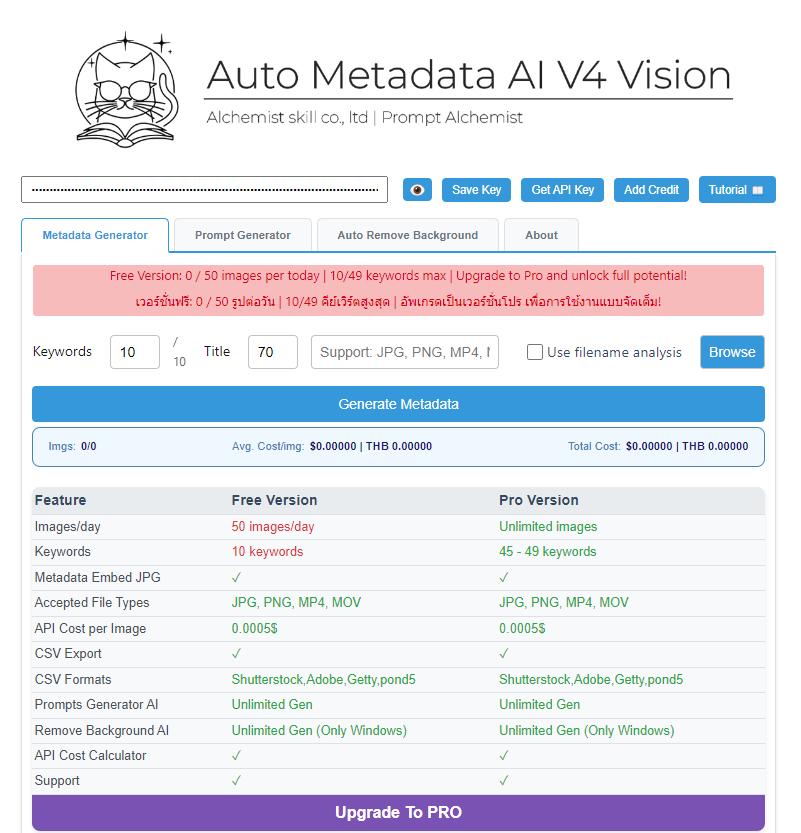
The free version has most of the same features as Pro, with just two limitations:
| Feature | Free | Pro |
|---|---|---|
| Images per day | 50 | Unlimited |
| Keywords per image | 10 | 45-49 |
| Adobe Stock CSV export | ✓ | ✓ |
| Shutterstock CSV export | ✓ | ✓ |
How to Get Your OpenAI API Key
Auto Metadata AI uses OpenAI's GPT-4 Vision API to analyze your stock photos and generate accurate microstock metadata. You'll need to get your own API key.
Step 1: Create an OpenAI Account
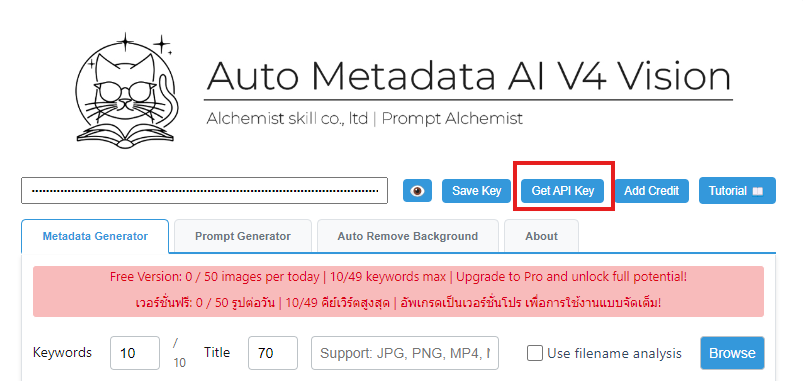
- Click "Get API Key" in the app, or go to platform.openai.com/api-keys
- Sign up or log in to your OpenAI account
Step 2: Create a New API Key
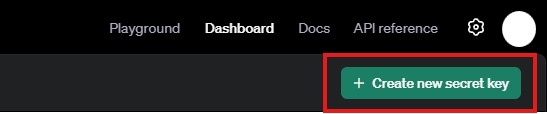
- Click "Create new secret key" at the top right
- Give your key a name (anything you want)
- Click "Create secret key"
⚠️ Important: Copy your key immediately! It will only be shown once. If you lose it, you'll need to create a new one.
Step 3: Save Your Key in the App
- Paste your API key into the input box
- Click "Save Key"
- You only need to do this once - the key is saved for future sessions

Add Credit to Your OpenAI Account
Before using the API, you need to add credit to your OpenAI account.
- In the app, click "Add Credit"
- Or go directly to OpenAI Billing
- Click "Add to credit balance"
- Add at least $5 (this can process approximately 10,000 stock images)


Cost Breakdown for Stock Photographers
| Amount | Stock Photos You Can Process |
|---|---|
| $5 | ~10,000 images |
| $10 | ~20,000 images |
| $50 | ~100,000 images |
The cost is approximately $0.0005 per image - that's just 50 cents per 1,000 microstock images!
Generate Stock Photo Metadata
Now you're ready to start generating Adobe Stock metadata and Shutterstock keywords automatically!
Step 1: Add Your Stock Photos
- Open the "Metadata Generator" tab
- Drag and drop your stock photos into the app
- You can also click to browse and select files

Step 2: Generate Metadata
- Click the "Generate" button
- Watch as AI analyzes each image and creates:
- Title - SEO-optimized title for microstock platforms
- Description - Detailed description for Adobe Stock and other agencies
- Keywords - 45-49 relevant keywords optimized for stock photography search

The AI will process each image in seconds, generating microstock metadata that includes:
- Objects and subjects in the image
- Colors, composition, and style
- Conceptual keywords buyers search for
- Platform-specific optimization for Adobe Stock, Shutterstock, Getty, and Pond5
Using the Prompt Generator
Want to create AI art prompts from your photos? Use the Prompt Generator tab!

Export Metadata for Stock Agencies
Once generation is complete, export your stock photo metadata for upload to your favorite platforms.
Supported Microstock Platforms
Auto Metadata AI supports CSV export for all major stock photography agencies:
- Adobe Stock - Full metadata support with 25 keywords
- Shutterstock - Optimized for 50 keywords
- Getty Images / iStock - Complete IPTC metadata
- Pond5 - Video and photo metadata
How to Export Adobe Stock Metadata
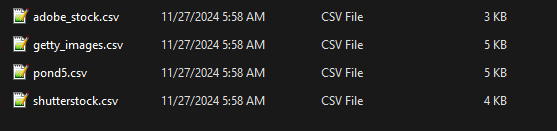
- Click "Export CSV"
- Select "Adobe Stock" format
- Choose a save location
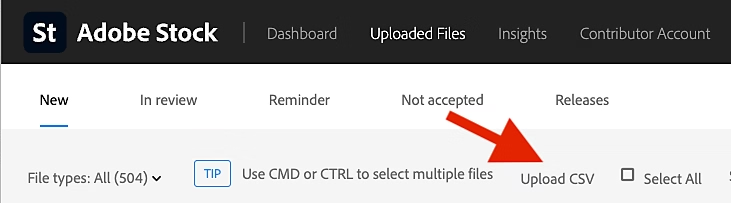
- Upload the CSV to Adobe Stock Contributor portal
Embed Metadata Directly
You can embed IPTC/XMP stock photo metadata directly into your files:
- JPG/JPEG - Fully supported
- PNG - Now supported!
- Video files (MP4/MOV) - Now supported!
- Select your processed stock photos/videos
- Click "Embed Metadata"
- The title, description, and keywords are written directly into the file
💡 Note: If embedding doesn't work for some file types, you can always use the CSV export method to upload microstock metadata to stock platforms.
Tips for Best Microstock Results
- Use high-quality images - Better images = better AI understanding for stock photography
- Process in batches - The app handles hundreds of stock photos efficiently
- Review before uploading - Spot-check a few results before bulk uploading to Adobe Stock or Shutterstock
- Use platform-specific exports - Each microstock agency has different requirements
Why Use AI for Stock Photo Metadata?
Manual keywording for Adobe Stock, Shutterstock, and other microstock platforms is time-consuming:
| Method | Time per 100 images | Cost |
|---|---|---|
| Manual keywording | 8-10 hours | Your time |
| Hiring a freelancer | 2-4 hours | $50-100 |
| Auto Metadata AI | 10 minutes | ~$0.05 |
Save hours on every batch of stock photography. Focus on creating content, not writing metadata.
Need Help?
- Email: alchemistskill@gmail.com
- Download: autometa.alchemistskill.com
Start generating Adobe Stock metadata, Shutterstock keywords, and microstock metadata automatically. Try Auto Metadata AI today!